
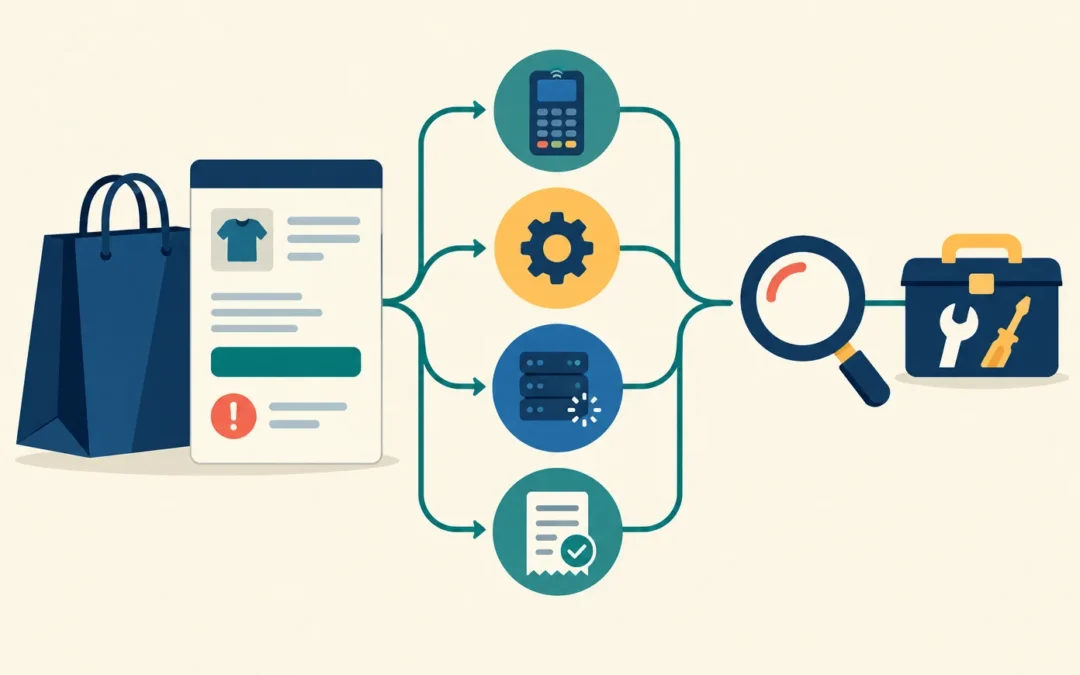
If your WooCommerce checkout is not working, resist the urge to change several settings at once. A checkout page that will not load is a different problem from a card payment that fails or a payment that succeeds without a matching order. The safest first step is to identify exactly where the process stops, then choose checks that fit that symptom.
This guide is for store owners and administrators who need to investigate an existing store without making the situation worse. You do not need to diagnose every technical detail yourself. You do need enough information to protect customers, avoid duplicate charges, and decide whether the next call should be to your host, payment provider, or a WooCommerce developer.
Start by identifying what “checkout not working” means
Describe what a shopper actually sees. Does the checkout page fail to appear? Does the place-order button do nothing? Is there a message about payment, shipping, or a required field? Does the page keep loading after submission? Or does the payment provider show a transaction while the order is missing or still marked as pending in WooCommerce?
Next, establish the scope. Check whether the problem affects every attempt or only:
- One payment method, such as cards but not another available option.
- A particular product, coupon, shipping destination, or customer account.
- One browser or device rather than several.
- Orders with shipping, while digital-only purchases behave differently.
These differences are clues, not diagnoses. For example, a failure limited to one gateway suggests checking that gateway first, but it does not prove the provider is at fault. A shipping error for one address points toward destination-specific settings, but a custom rule could also be involved.
Write down the exact message, where it appeared, the approximate time the problem started, and any recent changes to the store, theme, plugins, hosting, or payment account. Note the product and shipping destination involved without collecting more customer information than necessary. Record whether WooCommerce created an order and, if so, its status.
Before asking anyone to try paying again, check both the WooCommerce order list and the payment provider account. A shopper may have completed a payment even if your store displayed an error. Another attempt could create a second charge or make the records harder to reconcile.
Take safe first steps before troubleshooting
Begin with observation rather than edits. If practical, reproduce the symptom with a controlled test: use a test product or suitable test environment, follow the same cart and destination conditions, and record where the process stops. A free-order test may help check page submission, but it does not verify a paid gateway. Avoid repeated live orders or real card attempts simply to see whether the problem goes away.
Save the error text, a screenshot that excludes private details, and any relevant log entries. Logs are records of events or errors produced by the store, gateway plugin, or server. They can help a developer match the failure to a particular request. Before sharing them, redact names, addresses, emails, payment details, credentials, secret keys, and other sensitive data. Do not send card numbers to a developer or put secrets in a general support message.
Confirm that a recent backup exists before making changes, and check whether it can be restored by someone responsible for the site. A backup is not a reason to experiment carelessly on a live store: restoring it can affect orders and other data created after the backup. If you have a staging site, a separate copy used for testing, use it where practical to investigate configuration or extension conflicts. Keep its access controlled, and make sure tests cannot accidentally trigger real payments or customer notifications.
If checkout is business-critical and customers may be affected, pause risky edits while you establish the impact. Contact the payment provider for transaction questions, the host for server failures, or a WooCommerce developer for site-level diagnosis. Tell whoever is helping whether real payments or orders may be in an uncertain state; that changes the priority of the investigation.
Check payment gateway and transaction issues
If checkout loads and collects the expected details but fails when a shopper chooses a payment method, compare the available methods. Does the same cart fail with every method, or only one? Record each displayed message and the time of the attempt. Do not assume that a generic “payment failed” notice identifies the underlying cause.
For the affected gateway, review its connection or account status, required WooCommerce settings, and any transaction or event history available in the provider account. If you are comfortable doing so, check the relevant gateway logs in WooCommerce for the same approximate time. The provider may show whether an attempt reached it, was declined, was authorized, or never arrived. A decline is not the same thing as a broken checkout, and a request that never reached the provider may point back toward the site.
Recent changes to credentials, webhook settings, currency, provider account status, or the gateway plugin are useful clues. A webhook is a notification the provider sends back to your store; if that communication fails, payment and order records may not update as expected. Timing alone, however, does not establish which change caused the failure.
If you cannot tell whether a customer was charged, stop test retries and ask the payment provider to help verify the transaction. Never request a customer’s full card details or expose gateway secret keys while seeking support. A provider or developer can tell you which checks can be performed securely. If every gateway fails at the same point, widen the investigation to checkout configuration, scripts, and server responses rather than changing each gateway independently.
Look for plugin, theme, and custom-code conflicts
Checkout depends on more than WooCommerce itself. Payment and shipping plugins, checkout-field extensions, security tools, optimization plugins, and custom code can all change what happens between loading the page and placing an order. A theme may override a WooCommerce template, while a custom snippet may alter validation or the scripts used during submission.
Look at what changed shortly before the symptom appeared. Note plugin, theme, and WooCommerce updates, new snippets, and changes to optimization or security settings. An update followed by an error is a reason to investigate, not proof that the update caused it. For a broader approach to change-related failures, see what to do when a WordPress website breaks after an update.
Do not deactivate plugins one after another on a live store without a plan. Removing a gateway, shipping rule, or checkout extension can affect customers immediately, and changing several things at once makes the result difficult to interpret. Where feasible, take a backup, reproduce the issue on staging, and change one variable at a time. Record the outcome and have a tested rollback plan before applying a confirmed fix to the live store.
Staging is not always a perfect copy of production: payment credentials, provider notifications, caching, and external integrations may differ. If the failure occurs only on the live site, a developer may need to inspect it carefully without disabling business-critical functions for shoppers. Share the suspected change and your test results rather than declaring a plugin to be the cause prematurely.
Review checkout settings, products, shipping, and validation
If the checkout page is missing, redirects unexpectedly, or does not show an order form, confirm that WooCommerce is assigned the intended checkout page and that the page contains the expected checkout block or classic checkout content for your store’s setup. Check whether the page loads for a shopper rather than only while you are signed in as an administrator. Avoid replacing or rebuilding the page before you know what is wrong with the existing one.
If the page loads but will not submit, read any field-level error carefully. A required billing detail, a custom checkout field, a coupon restriction, or a product-specific rule may be preventing submission. For example, if one cart fails but another succeeds, compare their products and checkout requirements. This is an example of a diagnostic comparison—not evidence that any particular product rule is faulty.
For physical products, check whether the shopper’s destination qualifies for a shipping zone and an available method. Review the entered country, region, and postal code, then check whether product or cart conditions might hide a rate. An order that cannot obtain a required shipping method may be blocked before payment begins. If digital-only carts work but shipped carts do not, shipping deserves closer attention.
Location-specific failures can also involve tax settings, allowed selling or shipping locations, currencies, or payment methods restricted to certain destinations. Customer-type rules and custom validation can introduce further differences. Compare the smallest set of conditions that separates a successful attempt from a failed one; do not turn off tax or checkout requirements on the live store just to force an order through.
A useful test note might read: “Checkout loads for both carts; a digital-only cart reaches payment, but a cart requiring shipping shows no available method for this destination.” That description gives a developer a clearer starting point than “checkout is broken,” without assuming a cause.
Investigate loading, caching, and server-side failures
A checkout that spins indefinitely, freezes after a click, or shows a general error may be failing before an order is completed. A browser script error can interrupt the page; a blocked request can prevent checkout data from reaching the server; and the server may return an error instead of the response the page expects. These symptoms can look similar to shoppers even when their causes differ.
Compare checkout with the cart, product pages, and other parts of the site. Does only the checkout misbehave? Is the failure limited to a particular browser? If you are comfortable using browser developer tools, note console errors or failed network requests without copying private request data into a public message. Relevant WooCommerce logs may also show an error at the same time.
Caching, script optimization, security rules, and CDN settings can interfere with dynamic checkout behavior. They are possibilities to test, not settings to switch off indiscriminately. Any proposed change should have a way to verify checkout afterward and a way to reverse it if needed.
If you see server errors, slow or failed requests, or a checkout that works inconsistently under load, ask your host to review relevant server logs and resource limits. Provide the approximate time and a redacted description of the failure. A host can investigate server-side responses, while a developer can help connect those responses to WooCommerce, plugin, or custom-code behavior.
When a payment succeeds but the order looks missing or stuck
This situation needs extra care. A successful authorization, a captured payment, and a completed WooCommerce order are not necessarily the same event. Likewise, an order marked “pending” does not, by itself, tell you whether money moved. Avoid telling a customer to pay again until you have checked the records.
Search the WooCommerce order list using the available time, customer details, and order information. Then compare the result with the payment provider’s transaction history. Note the provider’s transaction identifier and status, if available, but do not publish identifiers or personal details openly. Check whether WooCommerce has an order with a different status, whether the provider shows an authorization or a captured payment, and whether more than one attempt appears.
Gateway notifications and relevant logs may help explain why an order status did not update. A provider-to-store notification may have been delayed or failed, for example, but that possibility should be confirmed before anyone changes an order. If the provider shows a transaction and WooCommerce has no matching order, contact the provider or a developer to reconcile what happened. Do not manually create an order, mark one paid, issue a refund, or alter payment records unless the correct action has been established. Those actions can affect fulfillment and accounting as well as the customer.
Keep a concise incident record: the approximate time, amount, provider status, WooCommerce search result, and people contacted. Share it securely with the appropriate support team, with sensitive fields redacted where possible. Clear records make it easier to resolve the mismatch without asking the customer to repeat a payment that may already have succeeded.
Decide whether to keep troubleshooting or hire a developer
DIY checks are reasonable when the issue is clearly scoped, you have a recent backup, the proposed change is reversible, and you can verify the outcome without putting live payments or customer data at risk. Confirming the assigned checkout page or documenting which shipping destination fails, for instance, may be within an administrator’s comfort zone. You do not need to keep experimenting simply because the admin screen offers more settings.
Bring in a WooCommerce developer when the problem persists after basic checks, affects all shoppers, involves custom code or several integrations, or cannot be reproduced safely. Payment/order mismatches, possible exposure of sensitive data, and a business-critical outage are particularly poor situations for guesswork. For account-level transaction questions, involve the payment provider as well; a developer cannot replace the provider’s payment records.
When requesting help, send a short diagnostic brief rather than a list of assumed fixes:
- What the shopper sees, including the exact error message and the step where checkout stops.
- When it started, how often it occurs, and whether all customers or only certain carts, destinations, devices, or gateways are affected.
- Recent changes to plugins, theme, code, hosting, and payment settings.
- Whether WooCommerce created an order and what the provider shows for any relevant transaction.
- Tests already completed, plus redacted screenshots or logs and whether staging and a recent backup are available.
Do not include passwords, card information, or secret keys in the initial brief. Ask the developer how access will be granted securely if it is needed. A clear report helps them investigate the actual failure rather than repeating risky tests or treating a suspected cause as a fact.
What to expect from WooCommerce checkout repair
A careful repair starts by understanding the existing store: its checkout setup, payment methods, extensions, customizations, and the precise symptom. The next step should be to reproduce the failure where practical or examine the available evidence before proposing changes. A contained repair may be possible; an unreliable checkout does not automatically mean the store needs rebuilding.
Ask a prospective developer how they will handle backups, staging where appropriate, implementation, and verification. What will they check to confirm that the affected checkout path works? How will they assess order records and avoid duplicate payment tests? What is the rollback plan if a change has an unintended effect? If the issue only appears on the live store, ask how they will investigate while limiting disruption.
Expect clear communication about what is known, what remains uncertain, and what work is in scope. Request a quote after the issue and proposed approach are understood; the cause, required access, and complexity determine the work. Be cautious of anyone who promises a particular fix or timeline before reviewing the evidence.
If your checkout remains unreliable, or your payment and order records do not match, WPRepairGigs can discuss diagnosing or repairing your existing WooCommerce store. Describe the symptoms and checks you have completed to request help and a clear quote once the issue and scope are understood.